Professional mobile apps, web sites and software tools
Custom mobile apps for phones and tablets
 PHDCC can build a custom app for iOS or Android - anything from a brochure app to display information to
a fully interactive app with server interaction.
PHDCC can build a custom app for iOS or Android - anything from a brochure app to display information to
a fully interactive app with server interaction.
- Apple iPhone/iPad, Android and Amazon Kindle apps
- Free, Paid or Freemium (free with in-app purchases)
- Use camera, GPS, contacts, storage - save settings, contact form
- Optional log in using Facebook and Google
- Configurable at runtime
- Design mockups, full usage stats
Conferences app
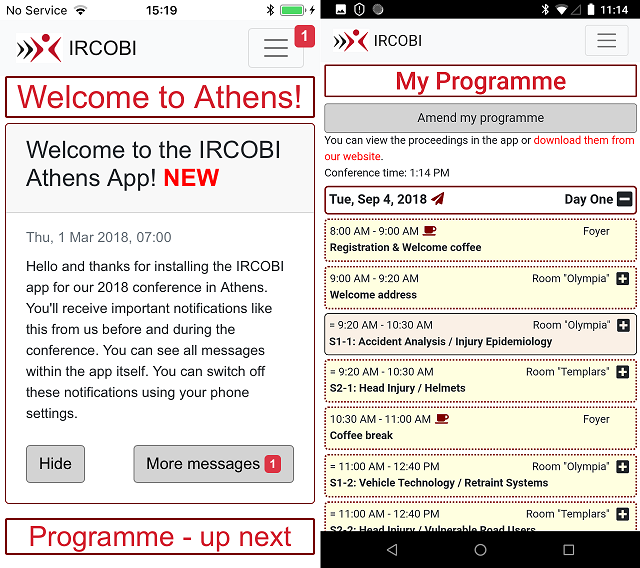
 Get an interactive guide to your conference in a mobile app from PHDCC - fully customisable with your programme of events.
- Saves the cost of a printed programme
- Programme can be changed at any time, even on the day
- Send notification messages to alert attendees
- Users can choose talks to build My Programme
- Home page automatically updates during day to show What's Next
- Admin console for event organisers
- Directions, Feedback and Sponsor pages provided
Papers
Papers is an online system that lets authors submit abstracts and papers for academic journals and conferences - with comprehensive peer review, editing and administration facilities available to the organisers.
- Online website for submission and review process - either on your system or hosted by PHDCC
- Automatic handling of submission process reduces admin work load
- System operates in phases, ie accepting abstracts, accepting papers, editing and review
Let us run your web site
- From membership-based web sites to custom programming and integrated open-source solutions
- to social networking and building a site community,
- We have years of experience of supporting and running volume web sites.
- Our consultants are available to meet all your needs.
-
 We build, configure and maintain Drupal and CiviCRM sites, with custom themes and code.
-
 We are DotNetNuke (DNN) Experts, writing modules and skins, and running volume sites.
- We work with local and international business clients, with non-profits, social enterprises and charities.
Made an Impact!

- Contact case management and reporting for the voluntary sector
- Made an Impact is a browser-based database of your contacts and all your interactions with them
- eg the full case history of service users and the time you spend with them
- It's one central place to keep up-to-date information at everyone's finger tips!
 All site Copyright © PHD Computer Consultants Ltd, PHDCC -
Contact us
All site Copyright © PHD Computer Consultants Ltd, PHDCC -
Contact us